On this page
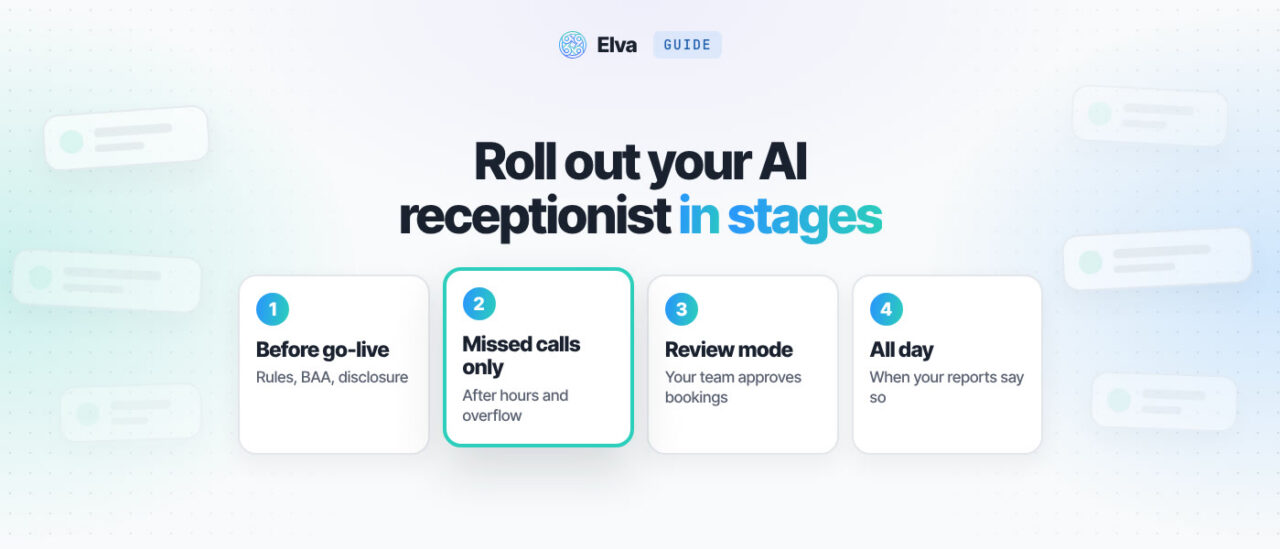
Roll out an AI receptionist in stages. Settle your scheduling and urgency rules and sign the Business Associate Agreement (BAA) first. Then have it answer only the calls you already miss, such as after hours, lunch and overflow, with review mode on. Widen to all-day coverage once your team trusts its bookings.
Buying the tool is the easy part. According to the ADA Health Policy Institute, 43.3% of dentists already use AI for at least one task (Q2 2026). The practices that get the most from an AI receptionist treat go-live as a short project with an owner, not a switch someone flips on a Monday morning.
What does an AI receptionist rollout involve?
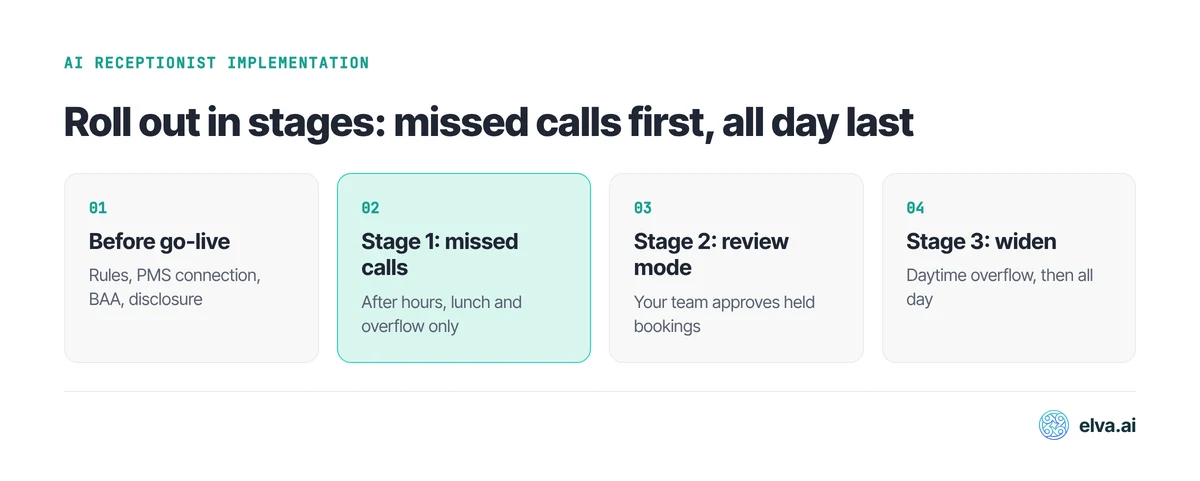
Four stages, each with a clear reason to move to the next:
- Before go-live: rules, the PMS connection, the BAA and the disclosure decision.
- Stage 1: the AI answers only the calls you already miss.
- Stage 2: review mode stays on while your team checks its bookings.
- Stage 3: coverage widens to daytime overflow, then all day if you want it.
You can step back at any time. If something looks off, set it to answer after hours only while you fix the rule.
Before you switch it on: the kickoff
Most of the work happens before the first call. With Elva, one kickoff call covers your providers, your appointment types, the insurance plans you accept and which calls should always reach a person. The Elva team does the setup from there.
Four decisions belong to the practice:
- Scheduling rules. Which appointment types the AI can book, with which providers, and how long each one takes.
- Urgency rules. What counts as urgent and where those calls go. You define it; the AI doesn’t diagnose or give medical advice.
- The BAA. Sign it before any patient data flows. A vendor that handles patient information for you is a business associate, and the HHS business associate guidance says a written agreement has to be in place. Elva signs one with every practice.
- Disclosure. Whether the AI says it’s automated at the start of a call. In Elva, this is set per practice.
If your practice management system asks you to approve the new connection, the Elva team walks you through it. Nothing else in your PMS setup changes.
Stage 1: start with the calls you already miss
Point the AI at the calls nobody answers today: evenings, weekends, lunch and the moments when every line is ringing. Those calls ring out or go to voicemail now, so anything it books is a gain, and a rough edge costs less. To size that gap before you start, run your numbers through the dental missed call calculator.
Patients keep calling the number they know. You choose when the AI picks up: after hours only, when your team is busy, or all day. Elva works with your existing dental phone system.
If evenings are your biggest gap, start there. Here’s what after-hours dental calls cost a practice that sends them to voicemail.
Stage 2: keep review mode on until the bookings look right
Review mode holds the AI’s bookings until someone on your team approves them.
Use it for the first stretch. Pick one person to check the held bookings once or twice a day: the right appointment type, the right provider, the right length. When a booking is wrong, fix the rule behind it, not only the booking, so it doesn’t happen again.
Calls the AI can’t finish don’t disappear. An AI receptionist warm transfer hands the call to your team with a summary, so the patient doesn’t repeat themselves. If nobody is free, the request goes to a callback queue.
Stage 3: widen coverage when your own numbers say so
Don’t move on because a set number of days has passed. Move on when your call reports show the bookings are right and transfers are going where they should.
Elva’s call reports show every call by outcome, with the booking barriers behind the calls that didn’t book. Read them once a week. When the held bookings for an appointment type need no fixes, turn review mode off for that type. Then widen the hours: daytime overflow first, all day if you want it.
Your team changes AI receptionist rules and settings in the dashboard, so adjusting a rule doesn’t need a support ticket.
What your front desk needs to know
Tell the team early what the AI is for: the calls they can’t get to, not their jobs. Then settle three things:
- Who owns the callback queue, and how often it gets cleared.
- Who takes transfers, and on which line.
- How to listen in on a live call, or take it over with one tap.
A short walkthrough with the dashboard open works better than a long memo.
Go-live checklist
| Task | Who | Done when |
|---|---|---|
| Kickoff call: providers, appointment types, insurance plans, calls that need a person | Practice and Elva | Rules written down and loaded |
| Approve the PMS connection, if your PMS asks | Practice, with the Elva team | Connection active |
| Sign the BAA | Practice and Elva | Signed before any patient data flows |
| Decide whether the AI announces itself | Practice | Setting chosen |
| Set urgency rules and transfer destinations | Practice | Every urgent call type has a destination |
| Run test calls | Practice | Every test call books, transfers or queues correctly |
| Name owners for the callback queue and transfers | Practice | Names on the schedule |
| Switch on for missed calls only, review mode on | Practice | First week of held bookings checked |
| Widen coverage | Practice | Call reports show bookings need no fixes |
For the test calls, use the stress-test script in our guide on how to evaluate an AI receptionist.
5 rollout mistakes to avoid
- Switching on all day on day one. Start with the calls you already miss; the stakes are lower.
- Vague urgency rules. “Anything urgent goes to the team” isn’t a rule. Name the call types and where each goes.
- Nobody owns the callback queue. Requests sit there and patients wait. Give it a name and a time of day.
- Skipping test calls. Test calls find rule gaps while no patient is waiting.
- Not telling the team. A front desk that hears about the AI from a patient won’t trust it.
Frequently asked questions
How do you implement an AI receptionist in a dental office?
In stages. Settle your scheduling and urgency rules and sign the BAA first. Then let it answer only the calls you already miss, with review mode on, and widen coverage once your call reports show the bookings are right.
How long does it take to set up an AI receptionist?
It depends on your PMS and how many rules you have. With Elva, one kickoff call covers your providers, appointment types and insurance plans, and the Elva team does the setup from there, so your team’s part is mostly decisions, not configuration.
Do we need to change our phone number?
No. Patients keep calling the number they know, and you choose when the AI answers: after hours, when your team is busy, or all day.
Should we tell patients they’re talking to an AI?
That’s your practice’s decision. In Elva, whether the AI announces itself is set per practice. Decide before go-live, and make sure a patient can always reach a person.
Can we scale back after go-live?
Yes. You can change when the AI answers, for example after hours only, or turn review mode back on while you fix a rule.
Ready to see a rollout on your own PMS? Book a demo of the AI receptionist for dental offices.